
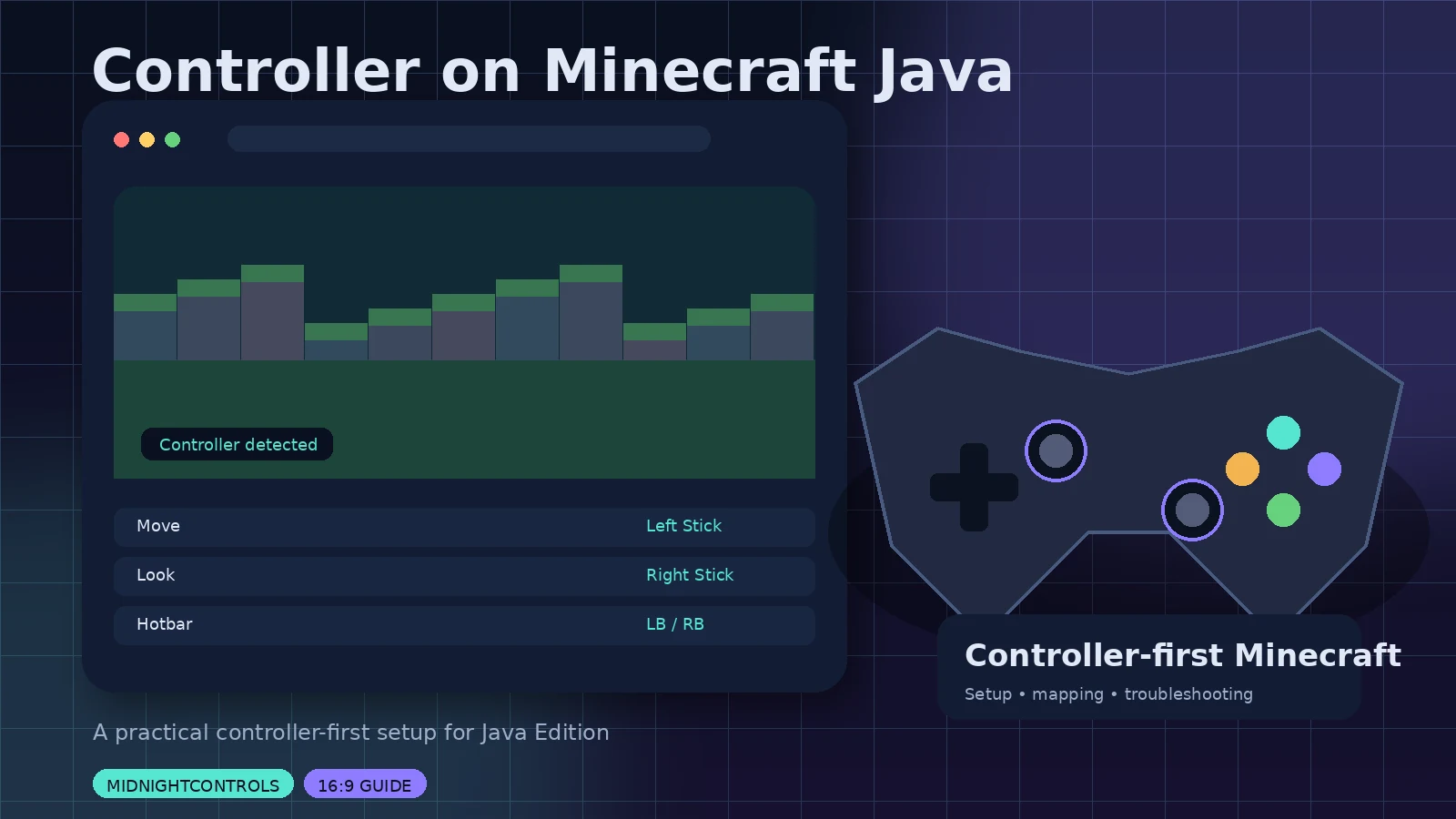
Minecraft Java Edition was designed around keyboard and mouse, but MidnightControls adds a controller-first layer for players who prefer analog movement and gamepad buttons. The goal is not to remove keyboard access; it is to make everyday play comfortable without constant device switching.
Connect the controller first
Confirm the controller appears in your operating system before launching the game. Bluetooth is convenient, but a wired test is useful when troubleshooting disconnects, latency, or unreliable pairing.
Tune movement and camera
Start with default sensitivity, then lower or raise it gradually. If the camera drifts, increase the dead zone only enough to stop unintended input. Excessive dead zone can make precise aiming feel delayed.
Test menus, inventory, and hotbar
Controller support is most valuable when it covers more than movement. Test inventory navigation, item selection, pause menus, crafting screens, and hotbar switching before you consider the setup finished.
Keep keyboard and mouse available
Chat, commands, certain mod configuration screens, and detailed inventory work may still be faster with traditional input. A hybrid setup gives you comfort without forcing every task onto the gamepad.
Quick checklist
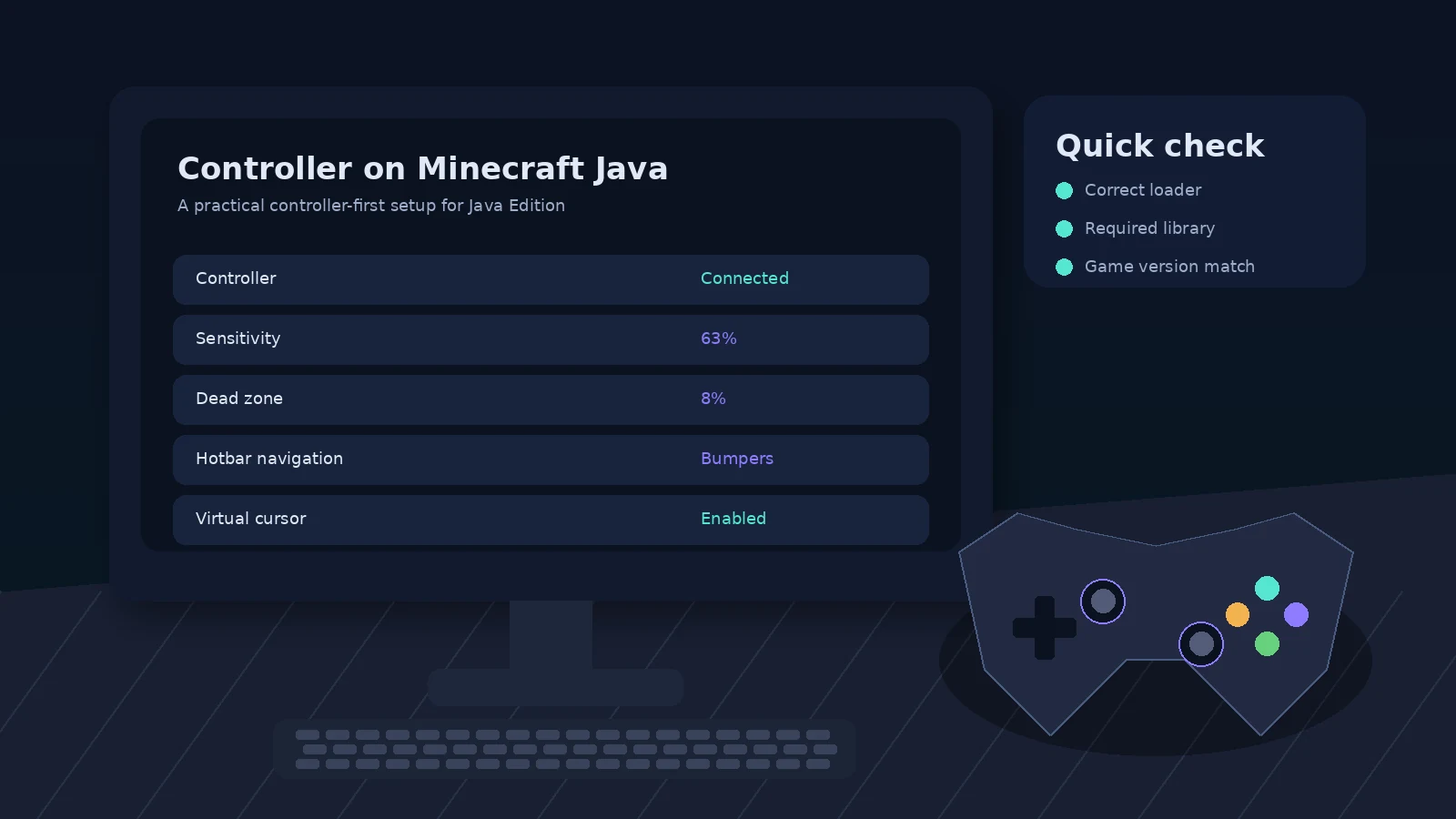
- Match Minecraft version and loader.
- Use official MidnightControls release pages.
- Install the dependencies listed for the exact file.
- Back up the instance before major changes.
- Test controller detection in a clean profile when troubleshooting.