
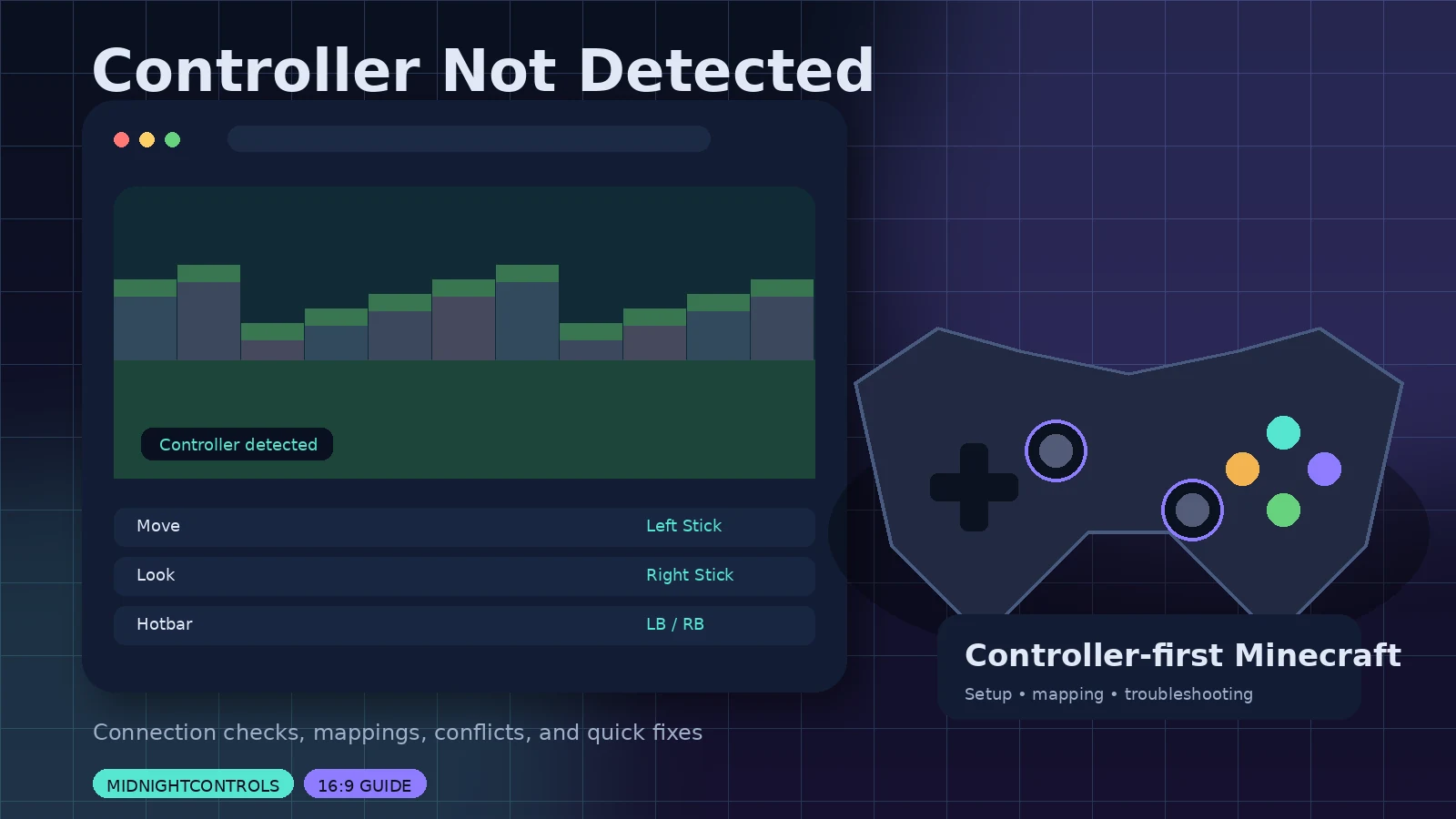
When MidnightControls does not detect a controller, work from the outside in: verify hardware first, then the operating system, then Minecraft, then the mod stack.
1. Check the operating system
Confirm the controller appears in your OS game-controller settings or another known working game. Re-pair Bluetooth devices, try a different USB cable, and test another port.
2. Reconnect before launch
Close Minecraft completely, connect the controller, and launch again. This simple restart can resolve devices that were connected after the game initialized its input layer.
3. Remove input conflicts
Temporarily disable external remapping tools and other controller mods. Double input, swapped buttons, or missing navigation can come from two systems translating the same device simultaneously.
4. Test a minimal profile
Create a profile with the correct loader, MidnightControls, and only required dependencies. If that works, add other mods back in groups until the conflict appears.
5. Read logs when the game crashes
If detection failure is paired with a crash, inspect latest.log and the crash report. Version mismatches and missing libraries usually leave clear clues near the first relevant exception.
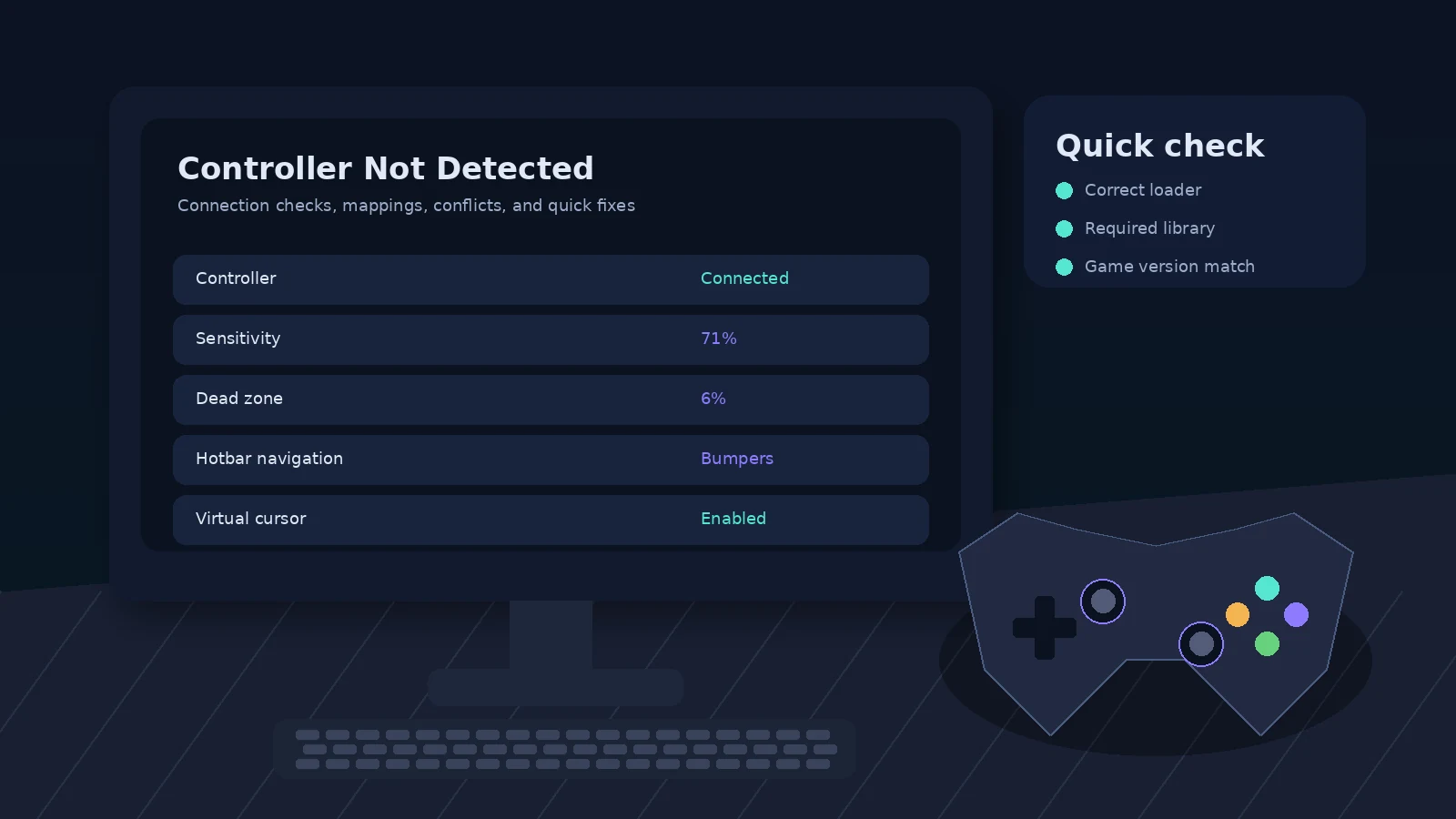
Quick checklist
- Match Minecraft version and loader.
- Use official MidnightControls release pages.
- Install the dependencies listed for the exact file.
- Back up the instance before major changes.
- Test controller detection in a clean profile when troubleshooting.