
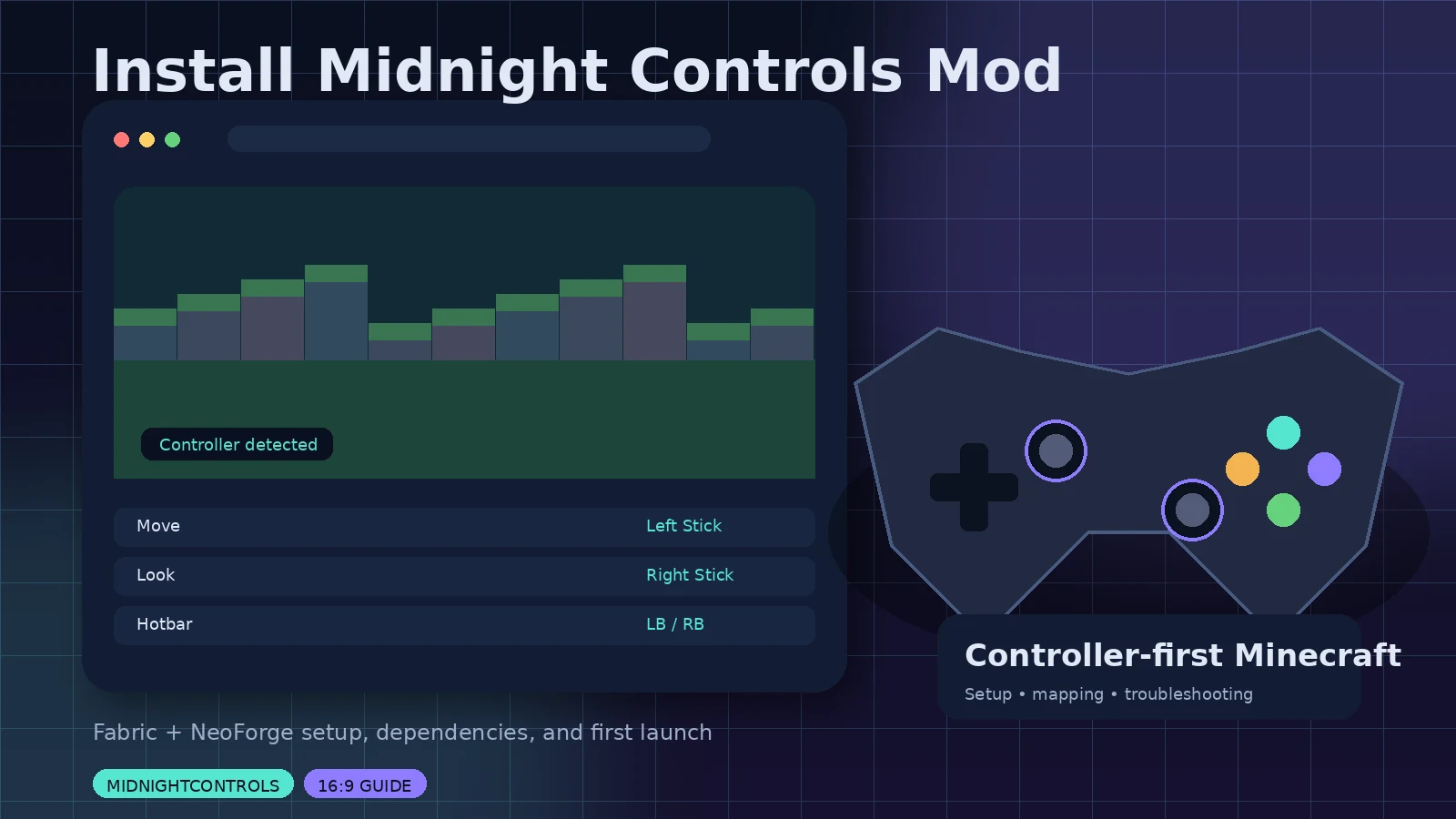
Installing MidnightControls is straightforward once you match three things: your Minecraft version, your mod loader, and the dependencies required by that release. Most failed installations come from mixing files built for different versions or assuming a Fabric JAR will work on NeoForge.
1. Choose the correct loader profile
Open your launcher and identify the exact Minecraft Java version used by the profile. Then confirm whether the profile uses Fabric, Quilt, or NeoForge. If you are starting from scratch, create a dedicated modded instance rather than modifying your everyday vanilla profile.
2. Download from the official project page
Use the MidnightControls page on Modrinth or CurseForge. Filter files by game version and loader. For Minecraft 1.21.11, official listings checked in September 2026 show MidnightControls 1.12.0 builds for Fabric and NeoForge.
3. Install dependencies
Read the dependency section for the specific file. Fabric builds may require Fabric API and MidnightLib. A missing library can cause a launch failure even when the MidnightControls file itself is correct.
4. Move files into the mods folder
Use your launcher’s “open folder” or instance-management option, then place compatible JAR files in mods. Remove older copies of the same mod unless you intentionally need them for another profile.
5. Launch and test controls
Connect the controller, launch the matching profile, open the controls screen, and test movement, camera, inventory navigation, hotbar switching, and buttons. If detection fails, try wired mode and a minimal mod profile.
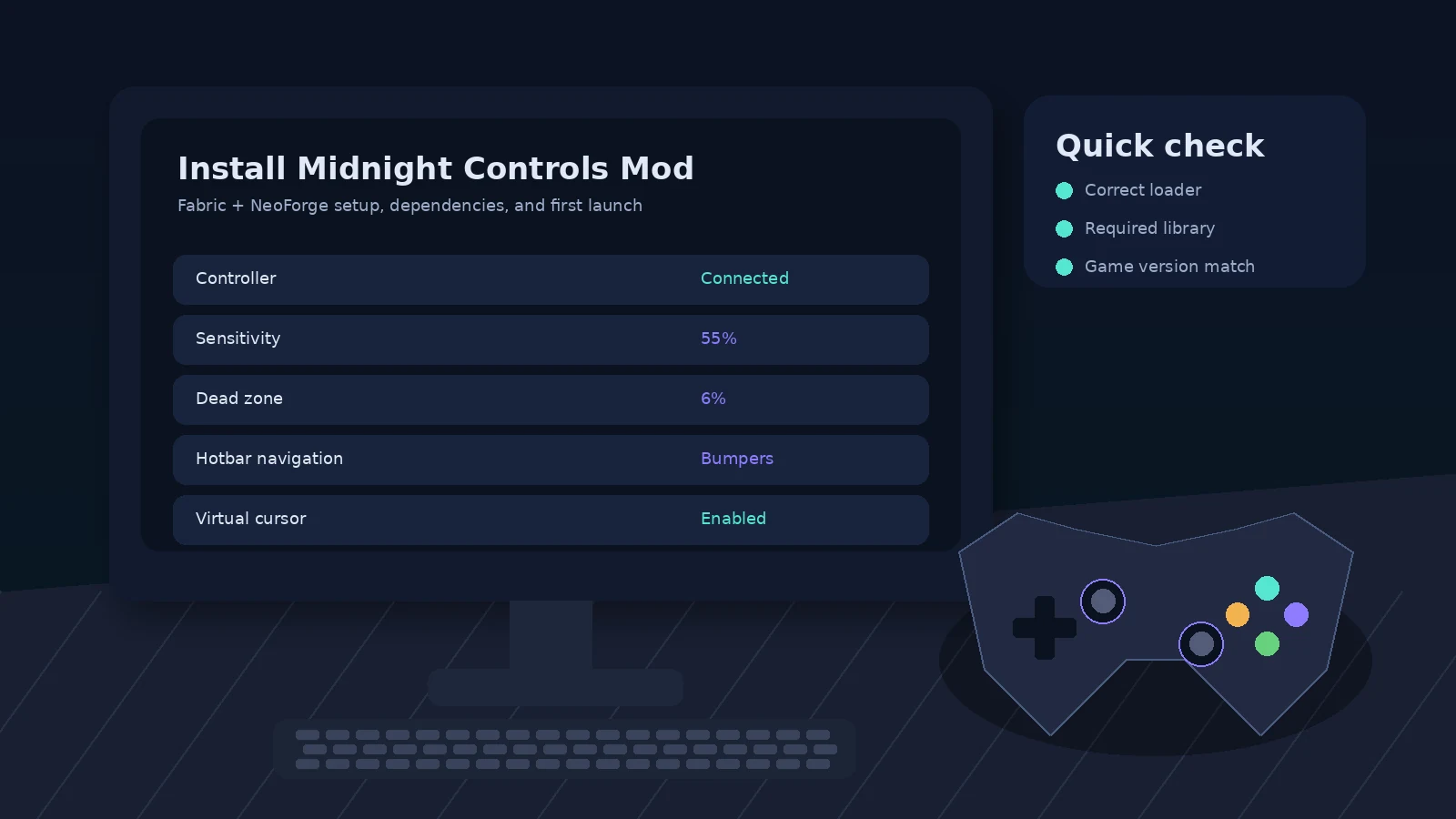
Quick checklist
- Match Minecraft version and loader.
- Use official MidnightControls release pages.
- Install the dependencies listed for the exact file.
- Back up the instance before major changes.
- Test controller detection in a clean profile when troubleshooting.