
A safe update process is more important than chasing the newest file number. Minecraft mods depend on exact game versions, loaders, and libraries, so a clean checklist can prevent most avoidable failures.
1. Use official distribution pages
Download MidnightControls from its verified Modrinth or CurseForge project pages. Avoid repackaged installers, download managers, and random archives that add no value to a Java mod installation.
2. Back up the instance
Copy your world saves, config folder, and current mod list before changing versions. A launcher that can duplicate instances makes this easy.
3. Match version and loader
Choose files for the exact Minecraft version and loader. Do not assume a new release for Minecraft 26.2 belongs in a 1.21.11 profile.
4. Re-check dependencies
Dependencies can change between releases. Read the file page again even if an older version worked with a certain library set.
5. Launch before adding more changes
Test one update at a time. If the game crashes after replacing several mods at once, you lose the easiest clue: which change caused the failure.
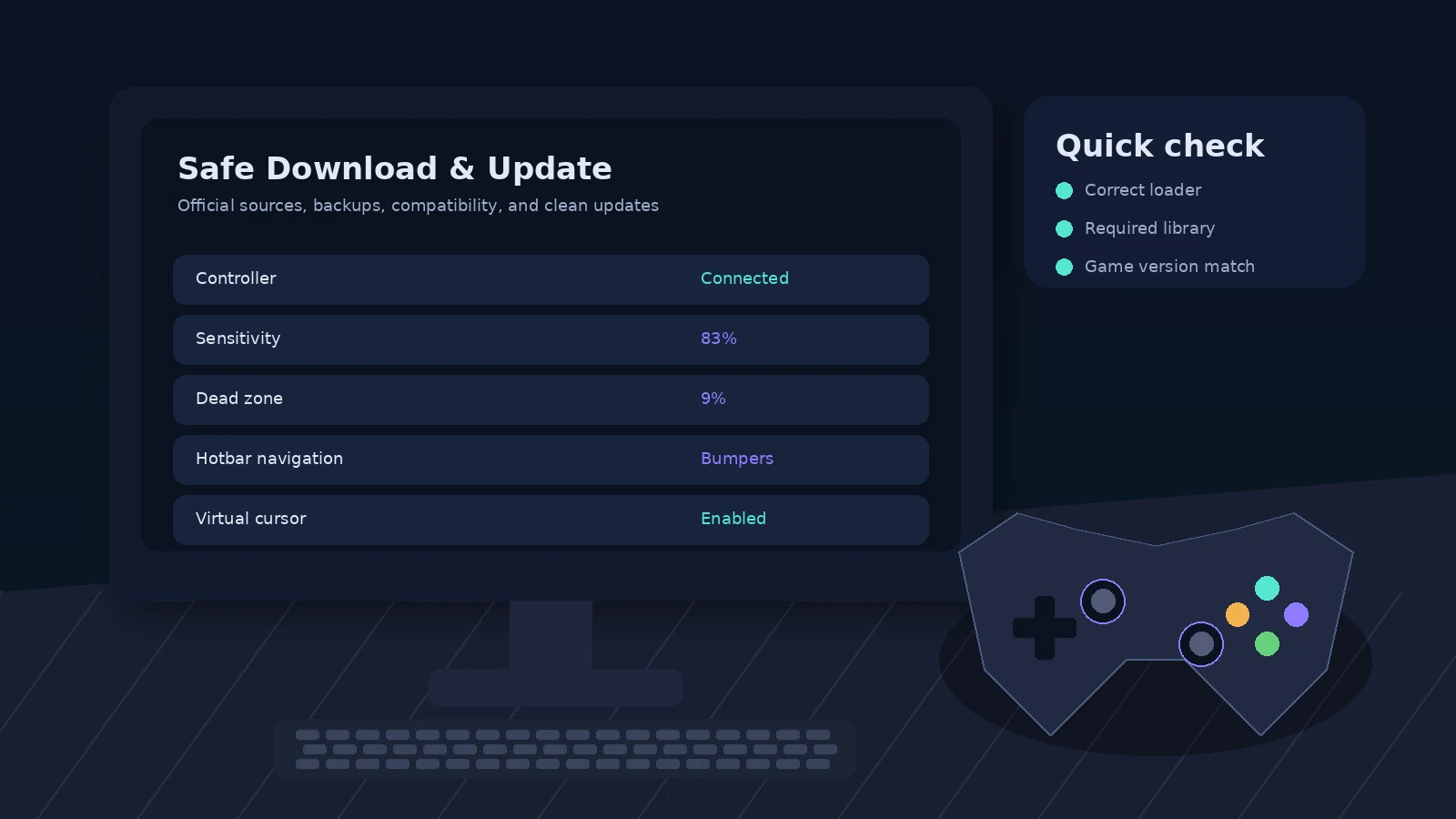
Quick checklist
- Match Minecraft version and loader.
- Use official MidnightControls release pages.
- Install the dependencies listed for the exact file.
- Back up the instance before major changes.
- Test controller detection in a clean profile when troubleshooting.